

Finding driving directions, camping spots, cool swimming holes nearby, grocery stores, cheap gas, etc… we’ll go ahead and say it: Van Life wouldn’t be the same without mobile Internet these days! It makes things SO MUCH easier and enjoyable, especially since we don’t like to plan ahead. And for the digital nomads out there living in their van or RV, having a reliable Internet connection is a MUST if you’re fortunate enough to make money and travel…
Cellular Internet Data Plan
In our opinion, a cellular Internet data plan is still one of the best way to stay connected. That’s what we use most of the time. If you intend to work from the road, and if you use your phone during activities (Trailforks, AllTrails, etc.), then a good cellular data plan is a must.


Coverage
Unless you plan on urban-dwelling, you will probably end up camping in BLM, National Forest, Public Land or at any remote location; getting lost is half the fun! In that case, it’s worth paying a little more and making sure you’re covered (almost) anywhere you go with your van or RV. Before choosing a network provider, check out OpenSignal app (Android, or iPhone) as you will find an interactive map of different network providers coverage. It’s also useful to find out if your next camping spot has Internet (for people working remotely):

Coverage varies with network providers: you will find Verizon Wireless has the best coverage out there in rural zones in the USA (which is where we spend most of our time).
If working remotely and your income depends on being online, you might consider a signal booster; it takes an existing signal and boosts it from, for example, one bar to three bars; it could make the difference between being stuck or being able to work from your van or RV (or with/without cute cat videos)…
Cost and Plans
In the US, Verizon has the best coverage, so that’s what we recommend for Van Life. Plans are constantly changing, so it’s impossible for us to keep track on this page; please refer to Verizon website:

2021 Update: Telus
We’re now spending more time at home here in Canada (thanks to the pandemic), so Isabelle and I both switched to Telus for the time being. It has the best coverage in rural areas in Canada. Use our Refer a Friend Link to get $50 credit on activation.
Using a laptop
Tethering
It’s possible to create a Hotspot with your smartphone to share your internet with your laptop; it’s called tethering. Some network providers allow tethering, some don’t, so make sure to check that. Verizon Wireless allows 15GB per month tethering at the time of writing these lines. You can also buy a MiFi device (a.k.a. Jetpack) to create an Internet hotspot in your van or RV; with the MiFi device you get 15GB tethering in addition of the 15GB on your smartphone (at the time of writing these lines).
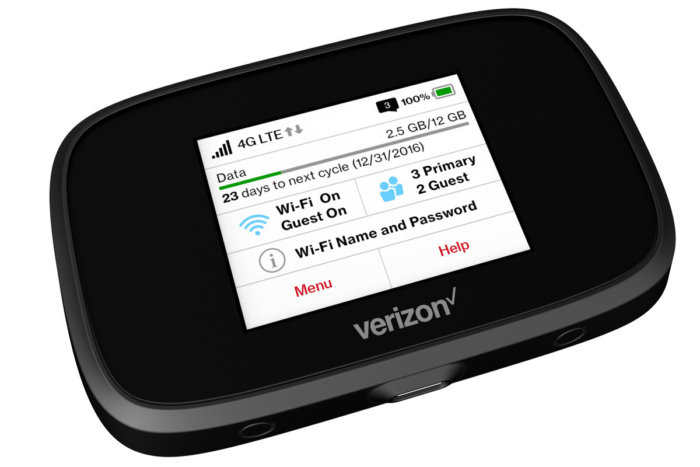
Be aware, most websites are optimized for smartphone: if the website detects that you are browsing from a smartphone, the images and data downloaded are very small. Browsing from a laptop sucks MUCH MORE data than a smartphone! Using a laptop, it’s very easy to go through the monthly 15GB if not careful…
Data Saver
Chrome browser used to have a built-in data saver option, unfortunately it is no longer available. Let us know if you have an alternative!
Metered Connection
When connecting to WiFi (tethering from your phone or your MiFi device), Windows checks for updates and downloads them, instantly wasting your precious monthly data 🙁 To prevent that, we recommend doing two things:
a) Creating a metered connection
By telling Windows the connection is metered, it limits what apps and Windows can do in the background:
1. Click on the WiFi icon in the taskbar, then right-click on the connection you want to meter and select Properties:

2. Toggle the “Set as metered connection” button to “On”:

b) Turning Windows Update off
Even after setting a metered connection, Windows will still try to update. It’s better turn off the Windows Update service:
1. Click on the “Windows” button and then “Settings” (left-bottom corner of your screen):

2. Search for “Services” and click on “View local services”:

3. Scroll-down to “Windows Update” and double-click on it
4. Click on “Stop”, select “Disabled” and click on “Apply”

5. This service can be re-started when desired (at the library or at coffee shop…). Just select “Manual” then click on “Start”.
Unlimited AND cheap?
There are a bunch of small providers advertising cheap unlimited data plans (such as Calyx Institute). You buy a hotspot device (that only works with them), pay for the entire year in advance, and you get unlimited data. We considered them at first, but we realized they come and go, and you’ll lose your money (annual plan and hotspot device) if they ever disappear (we observed that a few times). Moreover, most of the time, they buy bandwidth from smaller network providers with limited coverage… cheap is not cheap anymore if you can’t even use it! For these reasons, we pass.
Starlink (Satellite Internet)
Traditional satellite Internet used to suck. With satellites in geostationary orbit at 35,000km altitude, the signal return trip took a LOOOONG time; that means high latency delay (slow response time). Starlink satellites operate at 550km altitude, so the return trip for Internet signal is MUCH FASTER; that means low latency delay (fast response time). In fact, Starlink latency delay is comparable to cable Internet, which is quite impressive!
Up until recently, Starlink Internet was not portable; dish were geo-restricted and couldn’t be moved from their home location. Since 2022, Roam mobile plan is out and it is now possible travel with your dish in your van/RV!
We recently installed a Starlink Mini to FarOutVan 2, so you’ll find all the details about Starlink here:
Free WiFi
Not exactly free…
Free WiFi at coffee shops is great, except coffees and goodies quickly add up to the bill! So, it’s not exactly free… And it’s easy to get distracted when we’re trying to work, so we’re glad we have our Verizon data plan as primary Internet source.
Libraries are a good place to get free WiFi; it’s normally fast and quiet (too quiet?).
Some groceries, gas stations, restaurants, Walmarts, etc. also offer free WiFi but it’s kind of slow compared to coffee shops and libraries.
There is a free WiFi finder in the OpenSignal app (Android, or iPhone).
Use a VPN (Virtual Private Network)
Like it or not, we’re always logged in to something: Emails, Google drive, Facebook, Netflix, Amazon, web server, etc., etc. Public WiFi (without or with password) networks are the perfect targets for hackers; your credentials are vulnerable and easy to steal. To protect yourself, we recommend the following precautions:
- If doing online banking, log off from the public WiFi and tether from your phone instead.
- For everything else, use a VPN (Virtual Private Network). A VPN is one of the most robust and secure methods you can use to protect your devices. It sends your traffic through an encrypted ‘tunnel’, making it extremely difficult to decipher or intercept. One of the best VPN provider is called “NordVPN“; that’s the provider we personally use because:
- You can connect up to 6 devices with the same account (different computers & phones);
- They’re one of the VPN providers with the fastest & most locations available;
- They do not log any of your online activities;
- You can use it to browse your local Netflix (or others) when travelling internationally;
- It’s very straightforward to use: 1- Subscribe, 2- Download & install the NordVPN app on your computers and phones, 3- Connect to the VPN server using the app. That’s it, you’re safe now!

Safety
Isabelle and I sometimes part ways to go ride alone (or just take a break 😛 ), so it’s important to be able to communicate with each other. The best way to ensure a reliable communication is a pair of Midland Radios, but we really like the “Location Sharing” of Google Maps so we know where the other person is in real-time (as long as there is cell phone signal). The “Location Sharing” feature is located on the upper-left menu of the Google Maps app. Once it’s activated, we can see each others position on the map, nice! (Antoine normally carries the smartphone with him, while Isabelle carries her smartphone + the JetPack hotspot with her; the location comes from her smartphone and the JetPack provides the Internet link).

Conclusion
In our opinion, a cell phone plan or Starlink are currently the best options to stay connected on the road. Happy roaming!




mobilemusthave.com has high data plans and a modem/router solution that has given me super consistent internet to code from for my dayjob all over the US!
Fwiw I just checked starlinks website and it’s not really suitable for travel. You have to stay in your assigned geographic area (they call it a cell) and if you leave that area you won’t have service.
Starlink is working on a travel-specific variant of their receiver/transmitter and plan. Starlink in a static location with a clear view North is actually really good even in Beta. Hopefully, their cross cell plan and travel specific dishy will work just as well.
Data Saver Extension for Chrome doesn’t exist anymore, sadly. Instead, the introduced Lite mode for Google Chrome app on iPhone and android. I think I will try to use my phone more in lite mode after reading this article.
Oh. And other places that have free wifi – park outside a public library. Especially after hours.
I have been doing van life since 2014, off and on. I wish I could have had your blog back when I was figuring things out. Trial and error. Lots of error. Many things tried and abandoned.
The only suggestion I have to the above is to purchase an aluminum extension pole (20 feet) and put a directional or omni-directional antenna on the top. Connect it to your booster with good quality cable. Greatly aids in amplifying weak signals.
Thanks for the tips! I am looking to do some camping/mobile living while I have the opportunity to be remote this spring, and I’ve been searching for ways to find WiFi in Louisiana, Arkansas, Mississippi, Georgia public lands.
Any other tips for figuring out if national forest campgrounds have campground wifi? Thanks y’all! 🙂
We recently added the WeBoost Drive X RV to our build and have been really impressed with the performance. (Especially on BLM land and remote areas).
We pair it with the Netgear Nighthawk M1 Mobile hotspot/router. We keep a prepaid Verizon, AT&T and T-Mobile sim card with us that we can pop in as needed depending on coverage. We even run a few battery powered cameras through the system. Negligible power draw (Solar is really good in CO and we can’t ever seem to get our batteries below 90% even with fridge, fan and Webasto)
what brand solar set-up do you have?
Very helpful post! Question concerning the power consumption of a signal booster/hotspot. It doesn’t look like this was accounted for in your electrical wiring diagram. Would you be able to provide some more information on that? What is the electrical consumption, what is your estimated usage time with these (having been on the road for awhile)? Or is this negligible?
Trying to size our system right now, with plans of working remotely, and we don’t want to leave any stones unturned.
Thanks in advance!
Hi! We personally don’t have the Booster, but here is the spec sheet where you’ll find the power consumption: https://powerfulsignal.com/content/weboost-470410-spec-sheet.pdf
You can then plug that in our calculator to size your system: https://faroutride.com/calc/
Good luck 🙂
Just found your site and CANNOT believe all my lingering van life questions are being answered with every new page you post!!! Thanks so much!! I’ve now got your site welded to my browser (we favorited anyway, but welded sounds more permanent!) Safe travels and thanks for all the great content! You guys rock!
Thanks for the tips. I am at a campground right now trying to get some work done on their slow wifi and reading this as I wait for pages to open. This seems like a complicated subject. I can’t seem to figure out exactly how to get enough data to work off my laptop but this helps point me in the right direction!
Hi Guys.
Was wondering, if you are actually using the WeBoost 4GX-RV, and if so, where do you put the main receiving antenna? I was thinking inside the Max Air plastic shell above the fan, but I don’t know.
-Don
We don’t have the WeBoost, but i’d make sure to locate the antenna ON the roof (high) to get maximum reception…
Cheers